Projects dashboard
Let’s start by creating a new project in Stack AI dashboard. Click on the “New Project” button in the top right corner of the dashboard.
Templates view
Then, you will see a modal with a long list of templates. For example, you can choose the “Chat with Knowledge Base” template to build an application where your users can chat with the documents you upload (PDFs, word documents, etc).
Builder view
Once you create a project, you will see an interface with 3 main components:
- Canvas: the main component of the Stack AI tool, a 2D canvas where you can drag and drop nodes and connect them to build your workflow.
- Sidebar: a large variety of funcionality blocks, also called nodes, are available at the left hand side. These nodes represent the components in the flow where data is received, processed, and returned from different services.
- Control bar: a set of commands at the top right hand side with buttons to ‘Save’ (save the current version), ‘Run’ (execute the workflow as it is in the canvas), ‘Share’ (share the current version with another Stack AI user), and ‘Publish’ (make your workflow available externally).
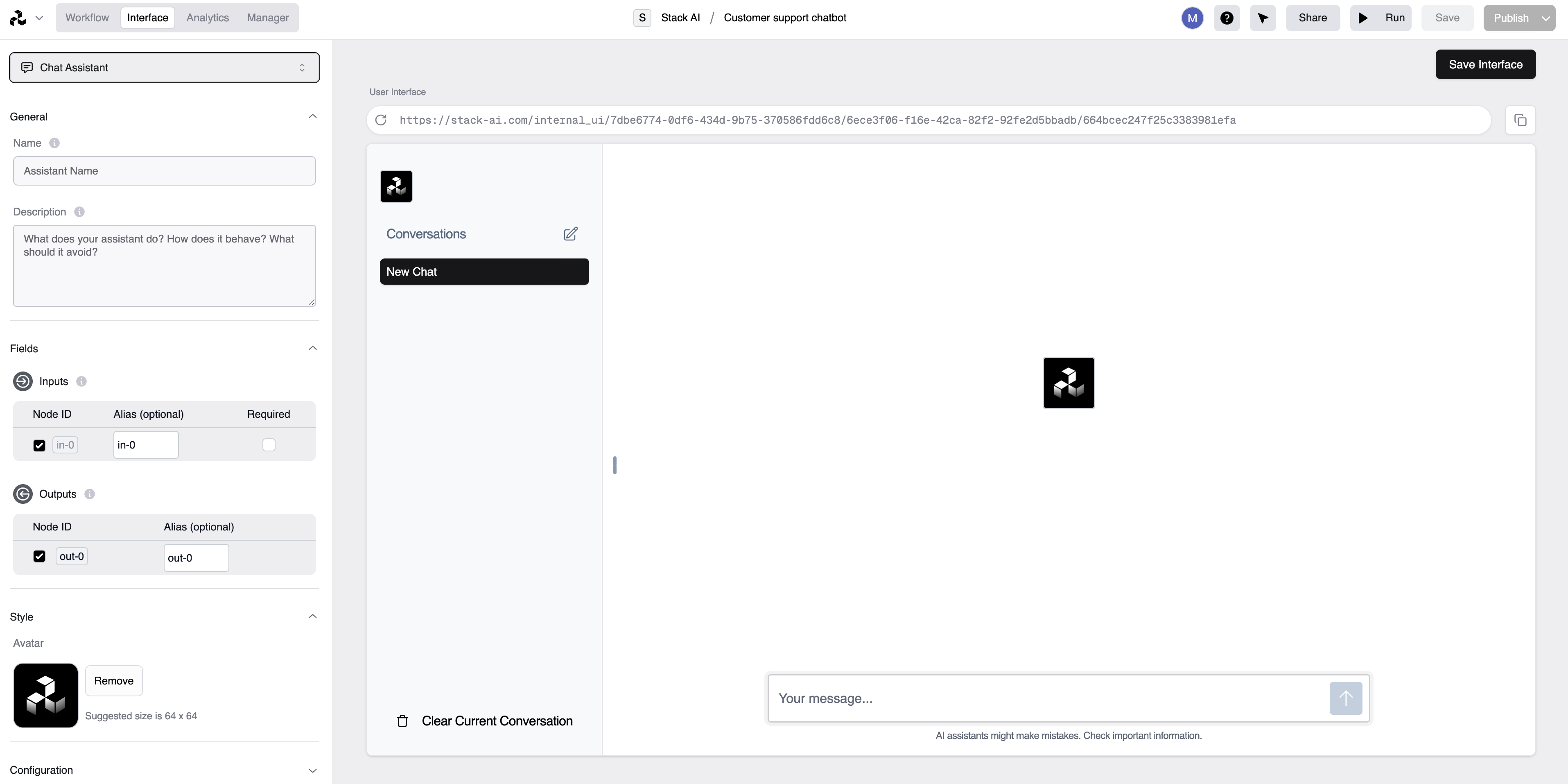
Other important views
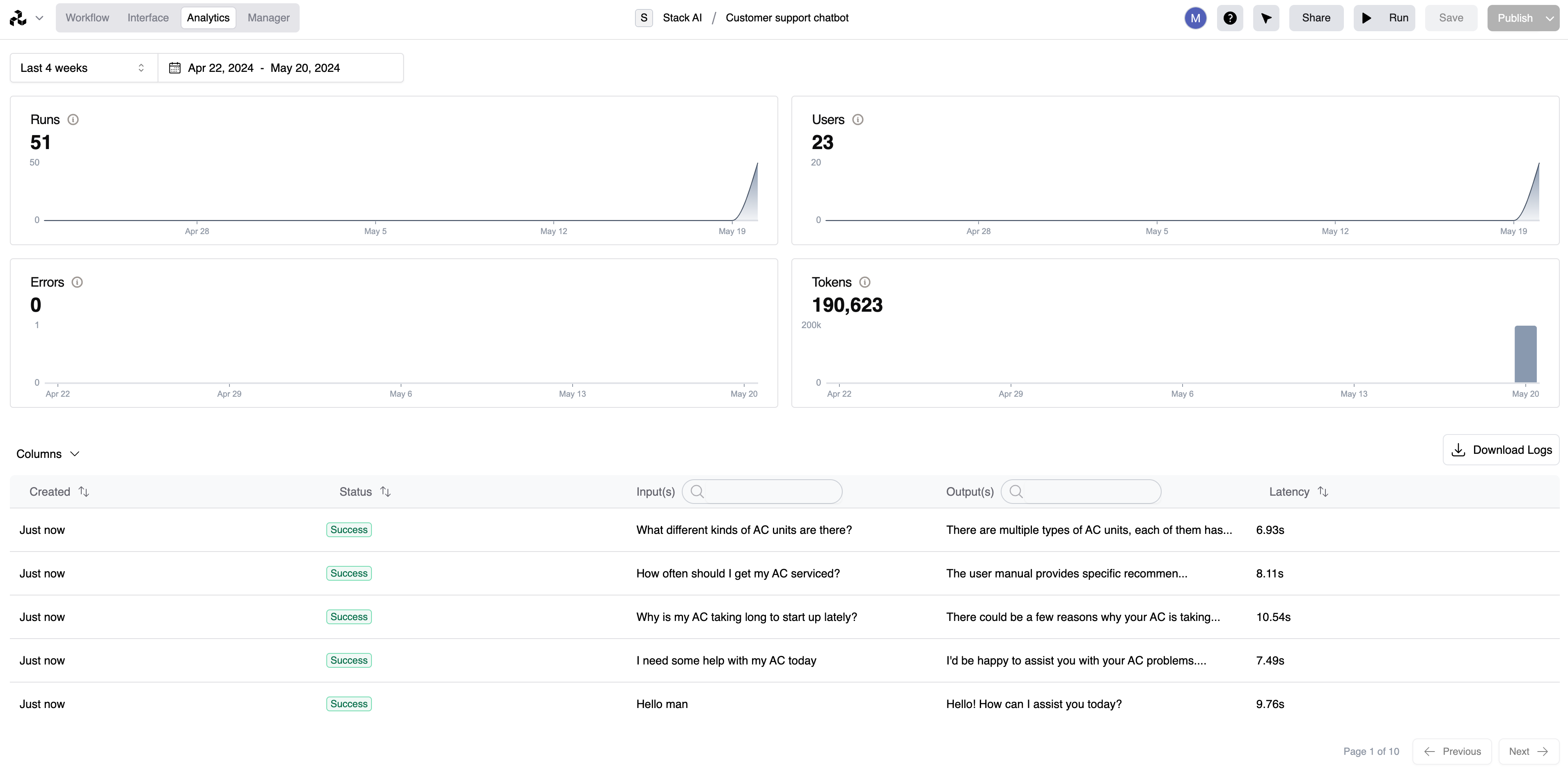
Analytics view
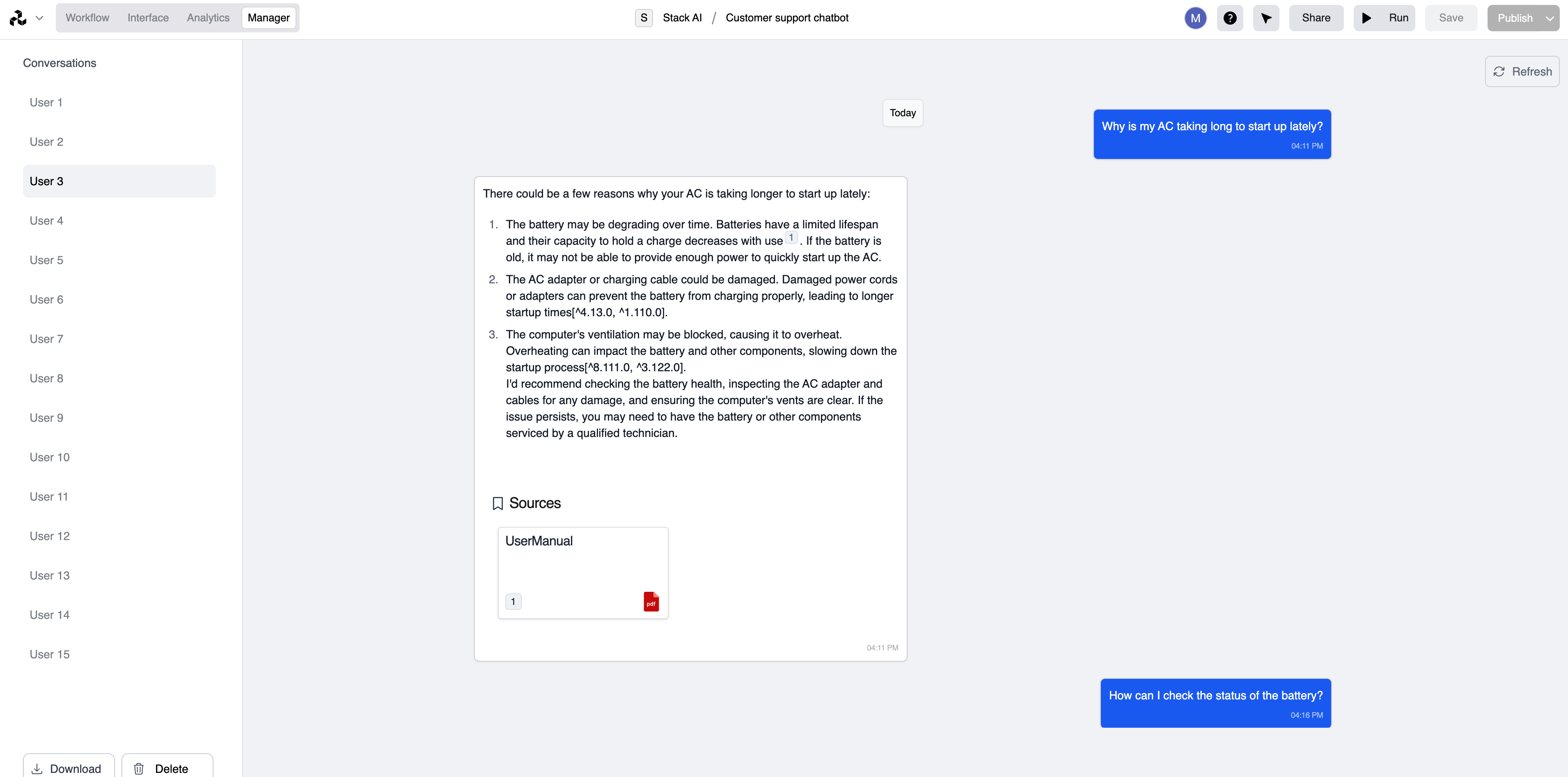
Manager view