What is an Audio to Text Node?
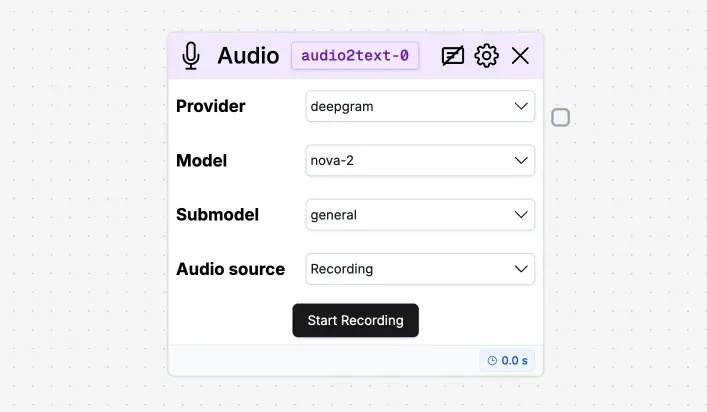
Provider
Specifies the transcription backend.deepgram: Uses Deepgram’s API for audio transcription. Supports multiple models and submodels.whisper-1: Uses OpenAI’s Whisper v1 model. Does not support model or submodel selection (uses a default configuration).
Model
Available only when using thedeepgram provider. Defines the main model used for transcription.
nova: Legacy model, fast and lightweight.nova-2: Latest generation with improved accuracy and speed.enhanced: Optimized for high-quality audio and complex content.base: Baseline transcription model with balanced performance.
whisper-1, this field is disabled.
Submodel
Further refines transcription behavior. Available only withdeepgram.
general: Default submodel for general-purpose transcription.- Other submodels exist depending on Deepgram’s model.
whisper-1.
Audio to Text Node Settings
If you click the gear icon in the node, you will see the available settings.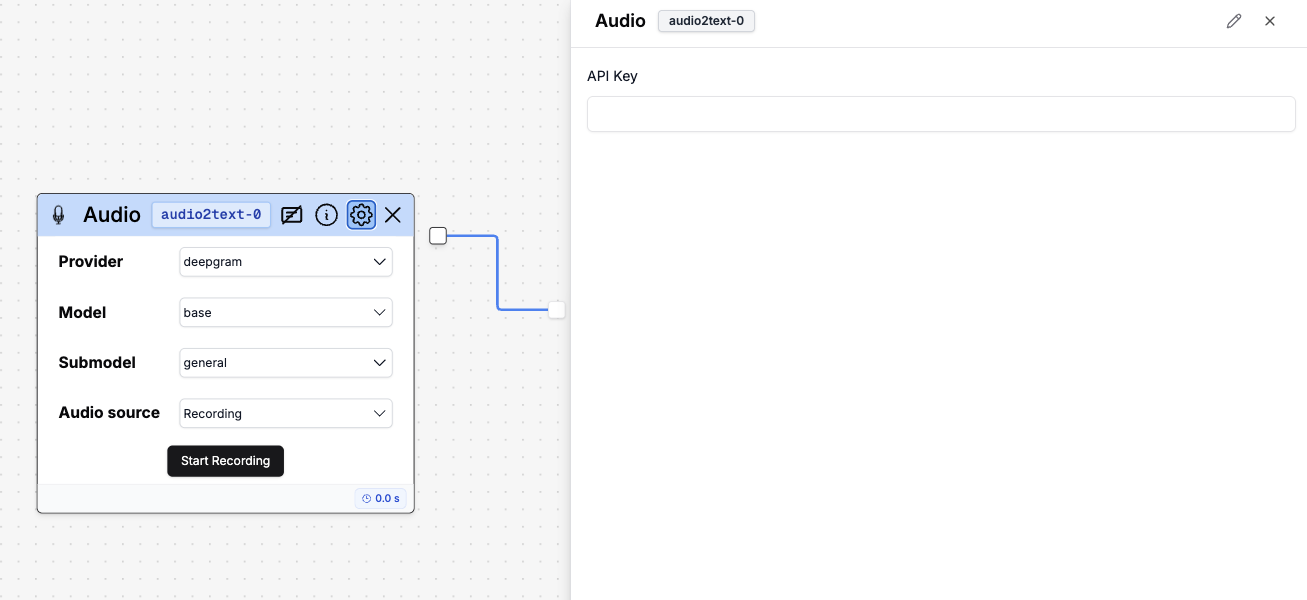 If you’re using your own audio-to-text model, here you can add your own API key to use it.
How to use it
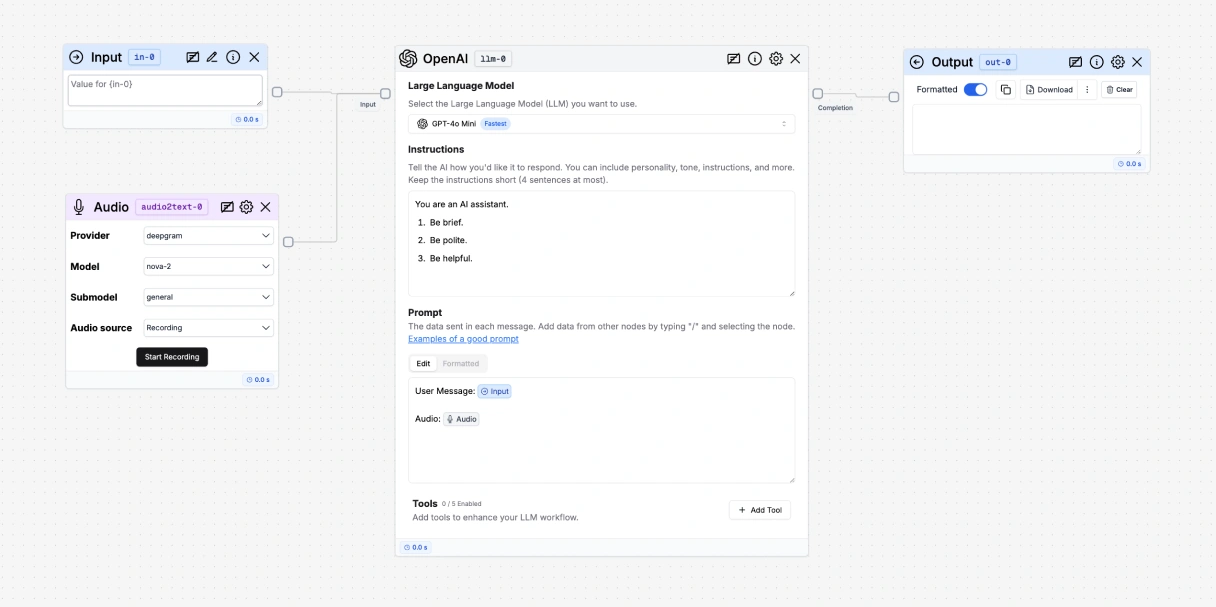
- Add an Audio to Text node to your flow.
- Connect the Audio to Text node to an LLM node.
- Mention the Audio to Text node in the LLM node by pressing ”/” and selecting the Audio to Text node.
- Add an Output node to your flow.
- Connect the Output node to the LLM node.
Expose the Audio to Text node to your users
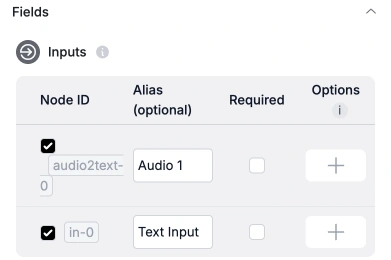
- Go to the Export tab.
- Enable the audio node in the Inputs section.
- Press Save Interface to save your changes.
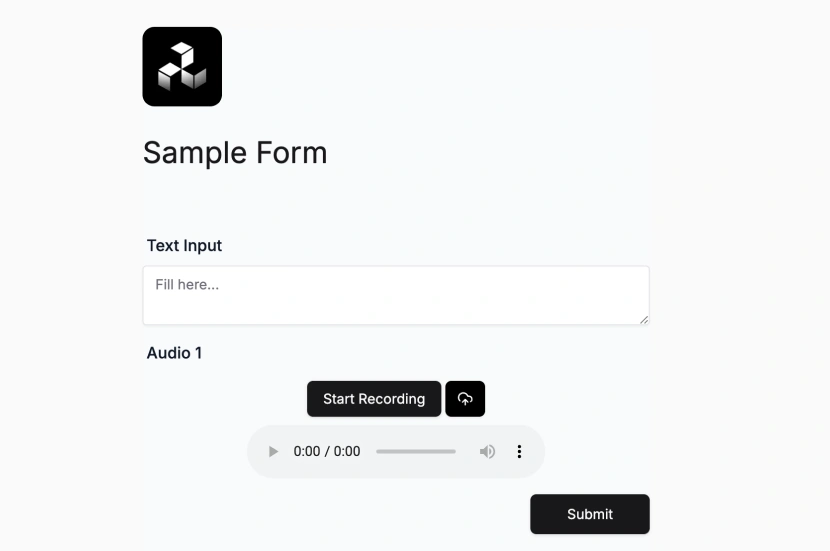
- Your users should now see an upload button in the interface.