

What is a Typeform Trigger Node?
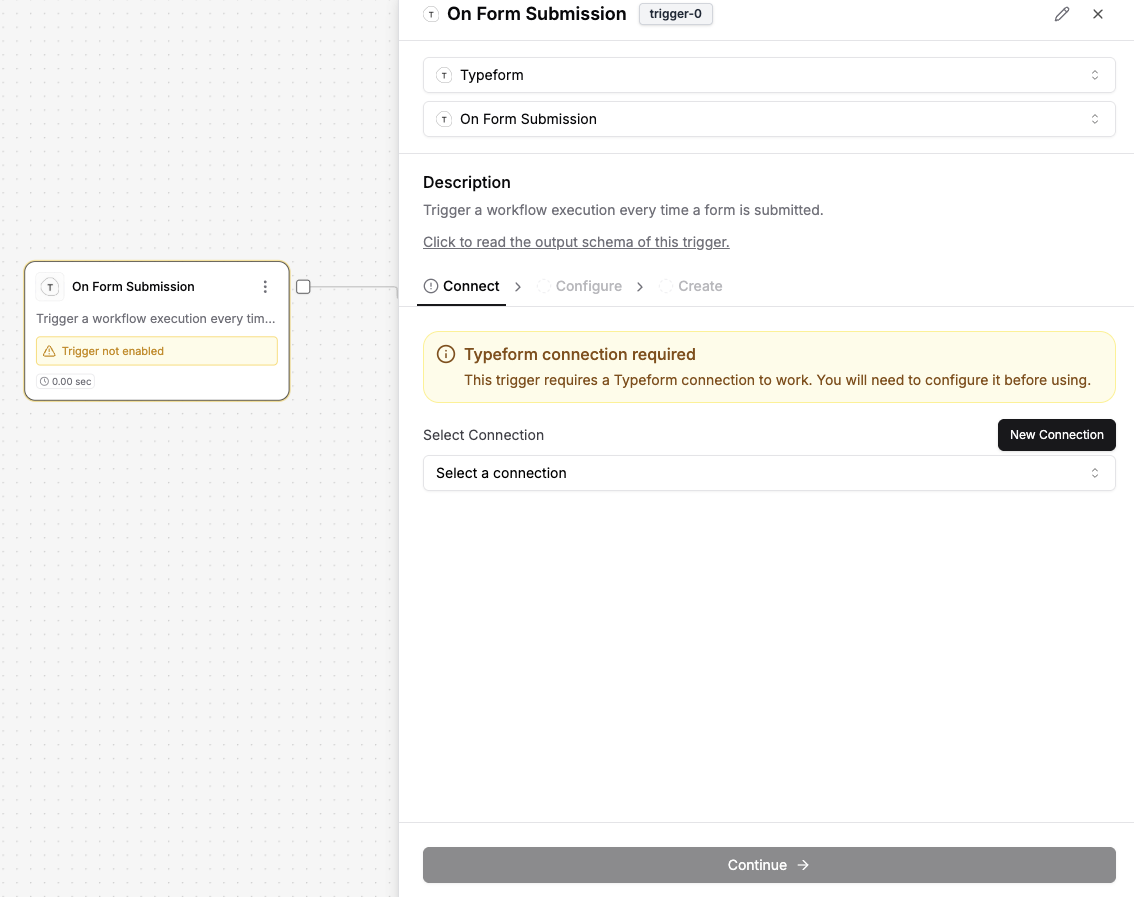 The Typeform Form Submission Trigger node monitors your Typeform forms and activates your workflow automatically whenever a new form response is submitted. It captures all form data in real-time, making the submission details immediately available for processing in your workflow.
Outputs
When a form is submitted on Typeform, the trigger node provides the following output: Form Response (string): A JSON string representing the complete response data from the Typeform submission, including all field answers, form metadata, submission timestamp, and respondent informationHow to set up the Typeform Form Submission Trigger Node
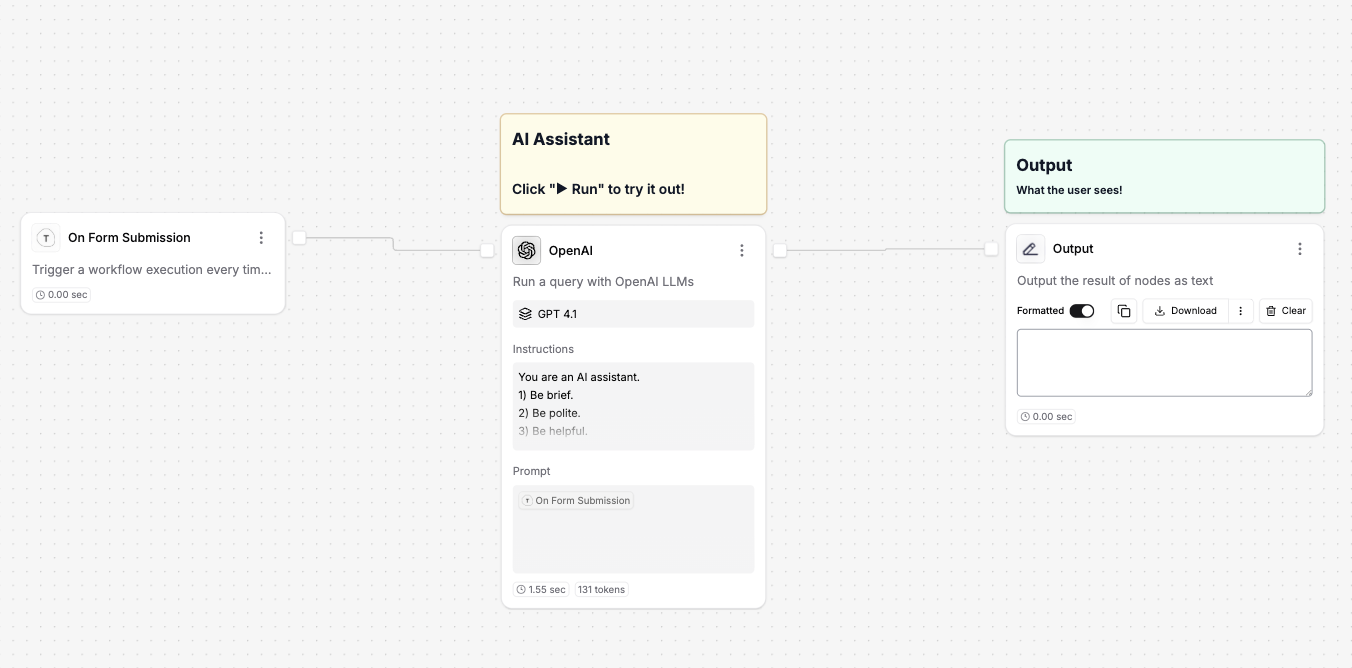
- Add a Typeform Form Submission Trigger node to your workflow
- Connect your Typeform account:
- Click “New Connection” if no connection exists
- Select an existing Typeform connection from the dropdown if available
- Provide your Typeform API credentials when prompted
- Select the specific Typeform you want to monitor from your account
- Configure test values (optional):
- Add a sample form response JSON for testing in the workflow builder
- These test values are only used during development and don’t affect the actual trigger
- Connect the Typeform trigger to downstream nodes in your workflow
- Publish your workflow to activate the trigger
Important Notes
- The trigger will not work until you publish the workflow
- You must configure a Typeform connection before the trigger can be used
- The Typeform connection requires valid API credentials with webhook access
- Webhooks are automatically configured for your selected form
- The trigger responds to all new form submissions in real-time
- Test values are only used during workflow design and testing
Using Form Data in Your Workflow
You can reference the form submission data in downstream nodes by:- Selecting the Typeform trigger node as an input source
- Parsing the Form Response JSON to extract specific field values
- Using the submission data with AI nodes for analysis or processing
- Accessing metadata like submission time, form ID, and respondent details
- Processing answers from different question types (text, multiple choice, rating, etc.)
Common Use Cases
- Lead Generation: Automatically process and route new leads from contact forms
- Customer Support: Create support tickets from feedback or help request forms
- Event Registration: Process event signups and send confirmation emails
- Survey Analysis: Analyze survey responses and generate insights
- CRM Integration: Add new contacts to your CRM system automatically
- Email Marketing: Subscribe form respondents to mailing lists
- Order Processing: Handle product orders or service requests
- Feedback Management: Collect and categorize customer feedback
- Application Processing: Review and route job applications or membership requests
- Data Collection: Store form responses in databases or spreadsheets
Troubleshooting
- Ensure your workflow is published for the trigger to be active
- Verify that your Typeform connection has the necessary permissions
- Check that the selected form exists and is published on Typeform
- Confirm that webhooks are properly configured (usually handled automatically)
- Monitor workflow execution logs for any connection or processing errors
- Test with sample data first before relying on live form submissions
- Ensure your Typeform account has webhook capabilities (may require paid plan)