

What are Custom Tools?
Custom Tools enable AI agents to execute custom actions by integrating with your API systems and services.Tool Provider
Before creating a custom tool, it’s important to understand how tools are organized in Stack AI. Tools are grouped under “Providers” - these are the main services or systems that contain related functionality. Think of a Provider as a container for multiple related tools. For example:- Salesforce (Provider)
- Create Lead (Tool)
- Update Contact (Tool)
- Search Records (Tool)
Custom Tool
A custom tool represents a specific API endpoint and its functionality. Each tool has several key components:-
Name: A unique identifier for the tool that can be referenced in LLM prompts. For example, if you name a tool
addPet, you would reference it as “addPet” when instructing the LLM to use it. - Description: A clear explanation of what the tool does. This helps the LLM understand when and how to use the tool appropriately.
-
Path: The API endpoint path that the tool will call (e.g.,
/api/v1/pets) - Method: The HTTP method to use (GET, POST, PUT, DELETE, etc.)
addPet tool by name and provide the necessary parameters based on the tool’s description and requirements.
How the Tools are called
When you define API endpoints in your custom tools, each endpoint becomes a distinct tool that the LLM can utilize. The LLM intelligently determines when and how to call these tools based on the context of the conversation and user inputs. Here’s how it works:- The LLM analyzes the user’s request or query to understand what action needs to be taken
- It identifies which tool (API endpoint) is most appropriate for fulfilling that request
- It automatically constructs the API request by filling in:
- Query parameters
- Body parameters
- Path parameters
- Headers
- Any other required request data
Create a Custom Tool
- The
/productsendpoint becomes a tool for retrieving product information, where the LLM can fill search parameters - The
/orders/createendpoint becomes a tool for placing new orders, with the LLM providing order details in the request body - The
/inventory/updateendpoint becomes a tool for managing stock levels, where the LLM determines the updated quantities
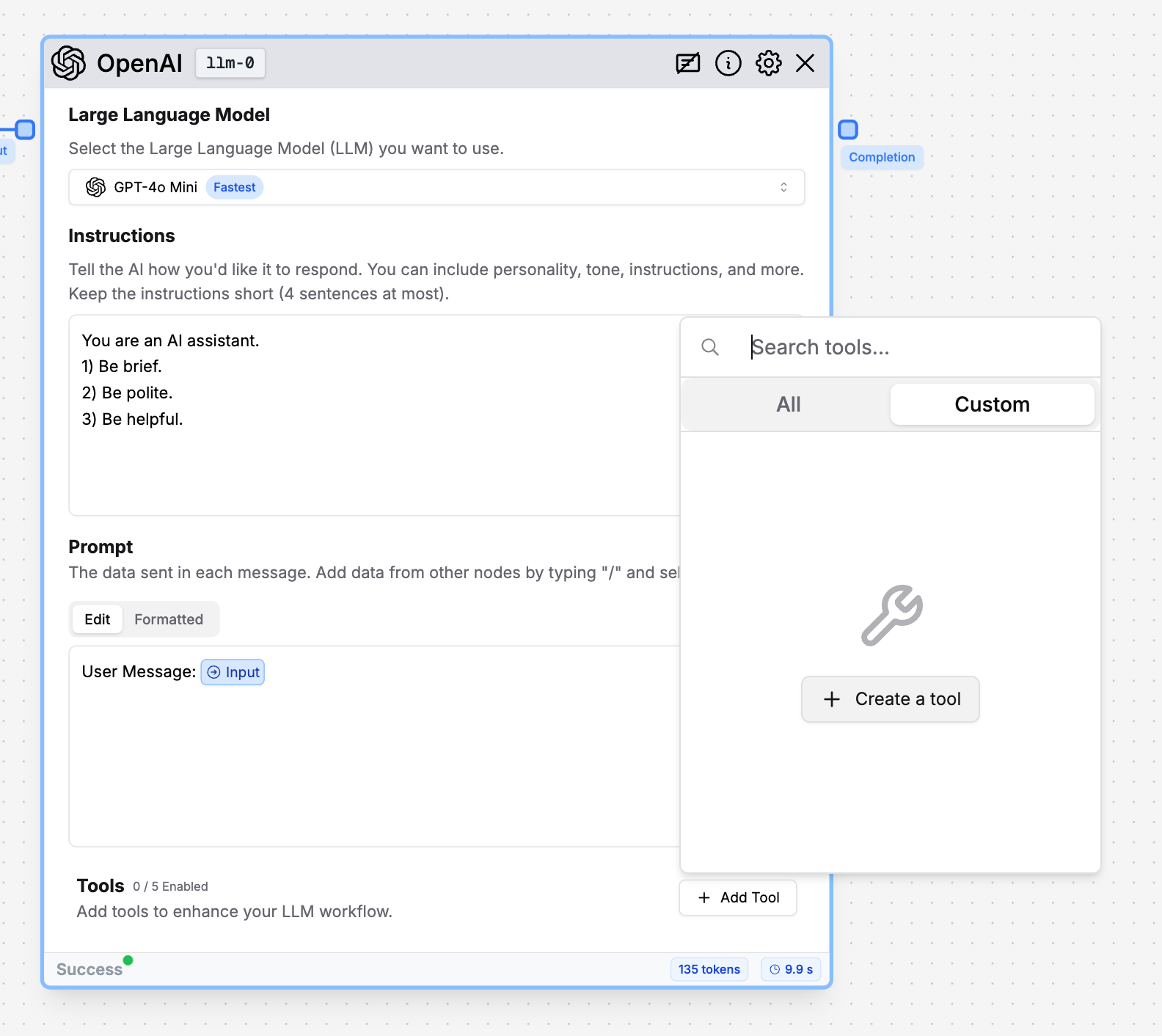
- Navigate to an LLM Node that supports Tools (like GPT-4 or Claude)
- Click the “Tools” button in the Tools section
- Select the “Custom tools” tab where your custom tools will appear. Click the “Add Custom Tool” button.
Adding Tool Information
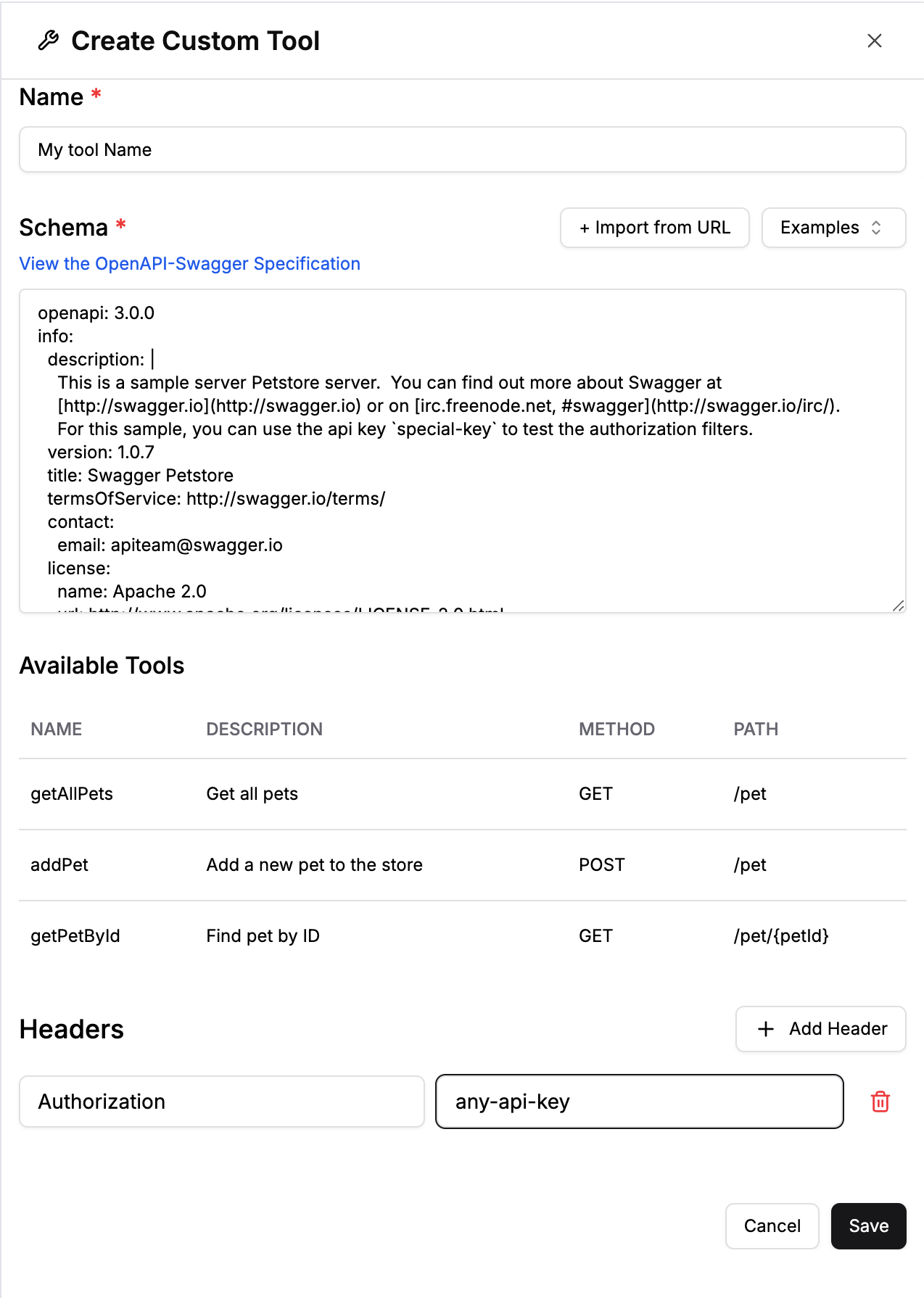
- Tool Provider Name: Give your tool provider a descriptive name that represents the service or system
-
OpenAPI Schema: Provide the OpenAPI specification that defines your API endpoints. The schema must include:
- Server URLs for the API endpoints
- Complete endpoint definitions with:
- Important! Clear descriptions explaining what each endpoint does and its purpose to help the LLM understand how to use them correctly
- HTTP methods (GET, POST, PUT, etc.)
- Path parameters
- Query parameters for GET requests
- Detailed request body schemas for POST/PUT requests
- Response schemas
- Required headers specific to endpoints
-
Common Headers (Optional): Define headers that should be applied across all endpoints, such as:
- Authentication headers (e.g. API keys)
- Custom headers required by your API
Include your custom tool into the LLM Node
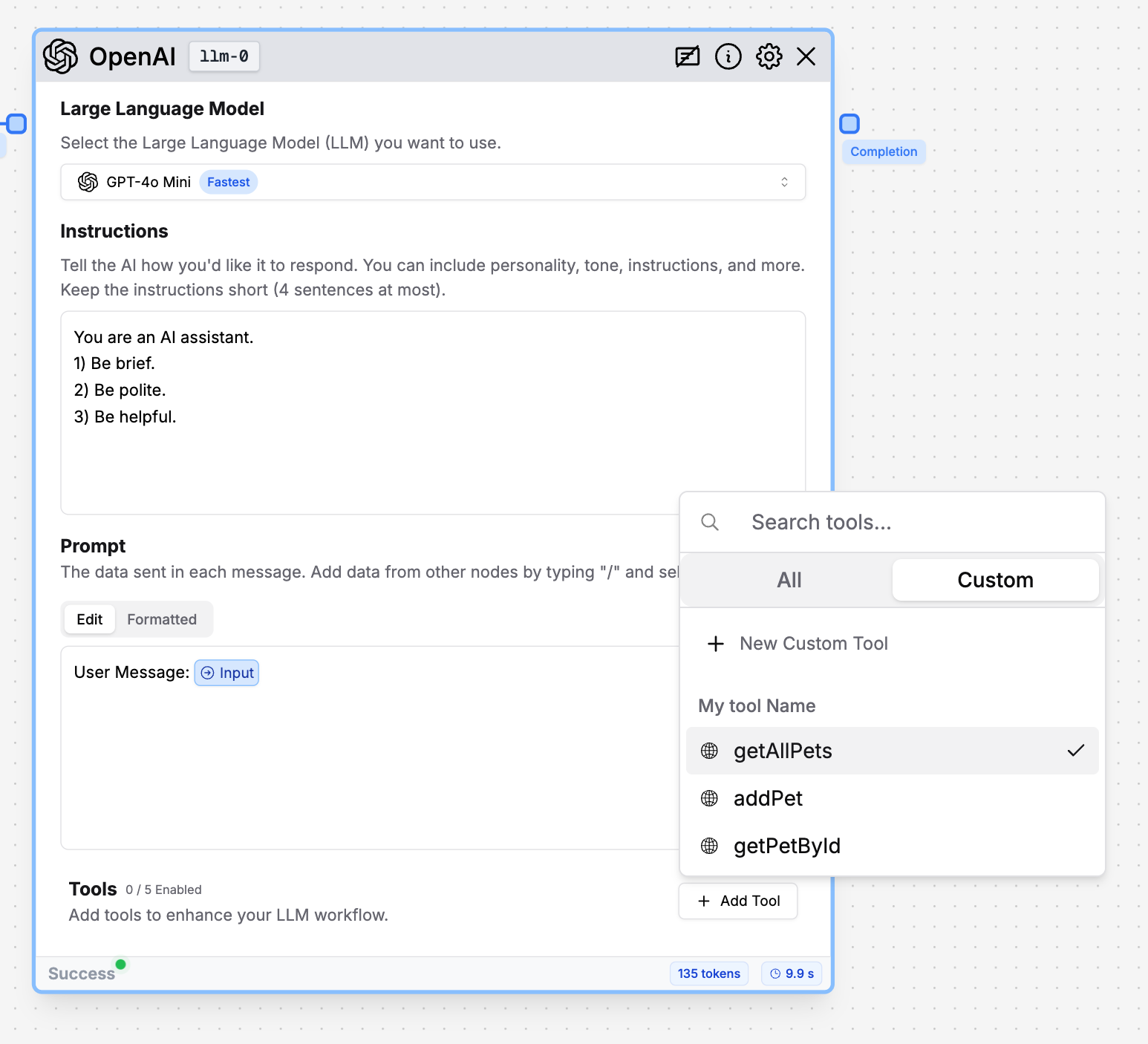
- Click on the “Tools” button in the LLM node settings
- Navigate to the “Custom tools” tab
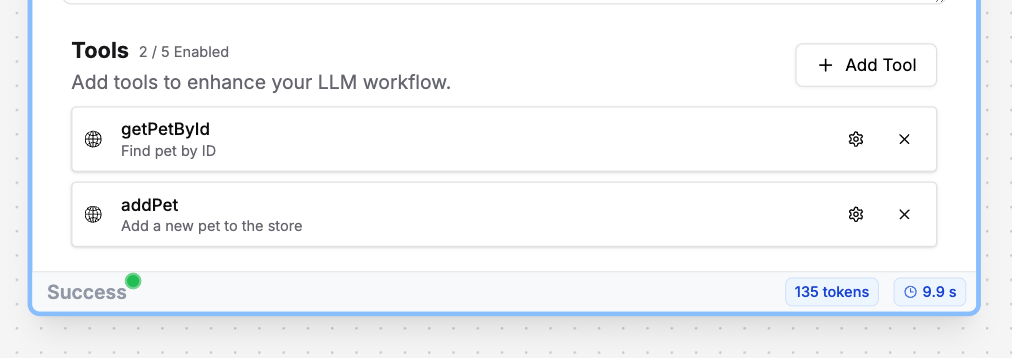
- Select your custom tool from the list.
Optimizing Tool Usage with Prompting
When using custom tools with an LLM node, it’s important to provide clear prompting to help the LLM understand how and when to use your tools effectively:- Describe the Tool’s Purpose: Include a clear description of what the tool does and when it should be used in your system prompt. For example: “Use the addPet tool to add a new pet to the store database.”
- Provide Usage Examples: Give examples of proper tool usage in your prompts to demonstrate the expected input/output patterns. For example: “addPet(name=‘Max’, category=‘dog’, status=‘available’)”
- Set Clear Instructions: Specify any requirements or constraints for using the tool in your prompts. For example: “When using addPet, ensure all required fields (name, category, status) are provided.”
- Handle Errors: Include guidance on how to handle potential errors or edge cases when using the tool. For example: “If addPet returns an error, verify the input data and try again with corrected values.”