

What is a Webistes node?
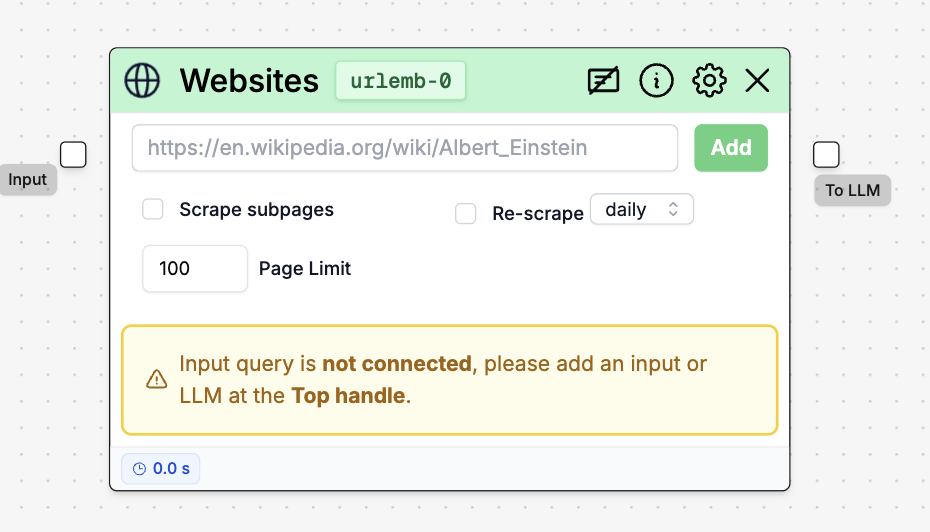
Websites node Settings
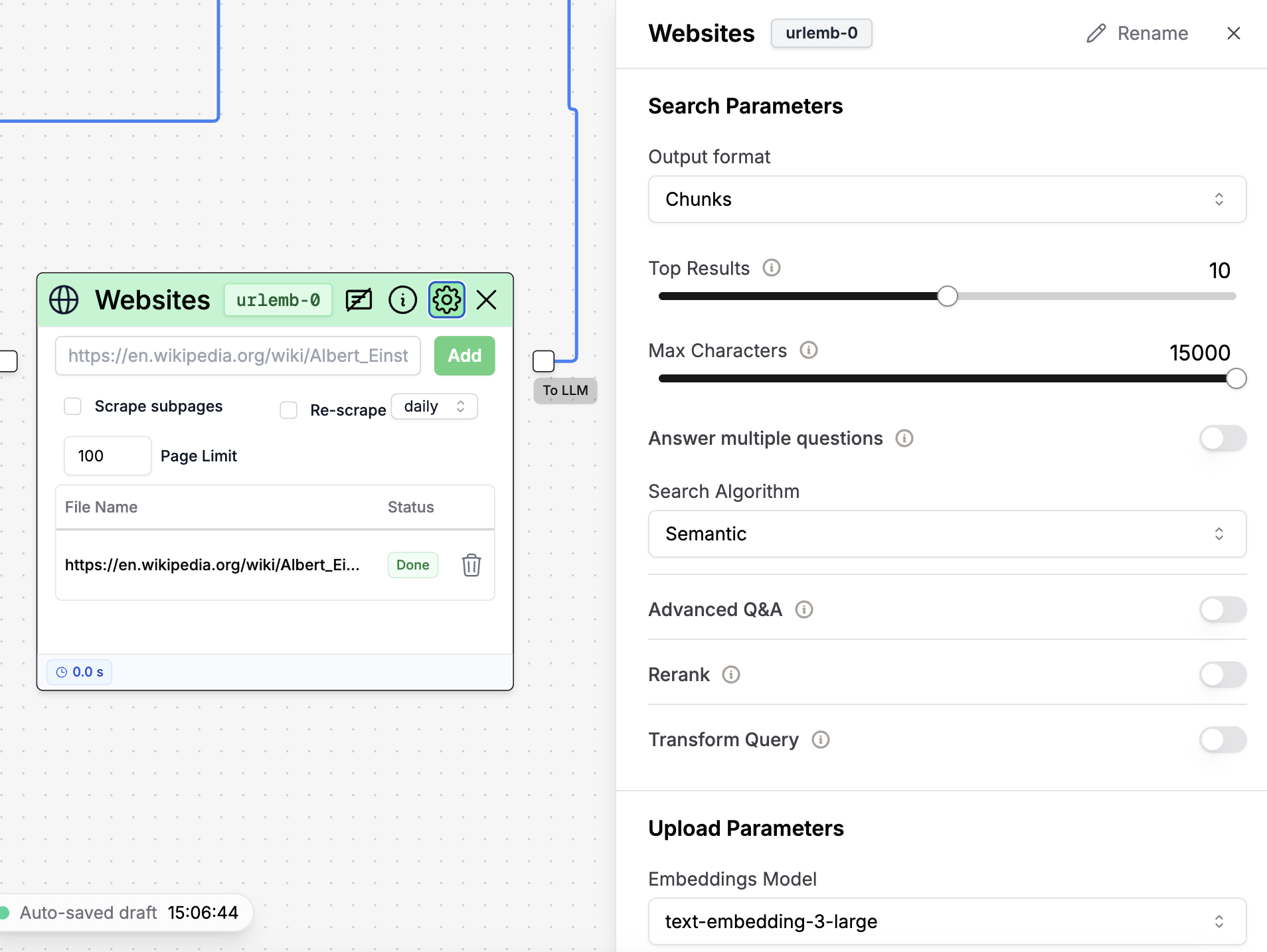 By clicking on the settings icon, you can access the settings modal. Here you can do the following:
Search Parameters
By clicking on the settings icon, you can access the settings modal. Here you can do the following:
Search Parameters
- Output format: options are chunks, pages, and docs.
- Top Results: number of search results ranked by relevance.
- Max Characters: number of characters sent to the LLM.
- Answer Multiple Questions: enable to get the answer from multiple questions in parallel.
- Search Algorithm: by default, the system uses
semantic. You can also choosekeywordorhybrid. - Advanced Q&A: handle questions to compare or summarize documents.
- Rerank: enable to get more precise information retrieval.
- Transfrom Query: enable to get more precise information retrieval.
- Model for Embeddings: as default, the
text-embedding-3-large modelfrom OpenAI is selected. However, you will have the option to select the following ones:azure-text-embedding-ada-002,bert-base-cased,all-mpnset-base,palm2and more. - Chunking algorithm: by default, the system uses
sentence. You can also choosenaive. - Chunk overlap: by default, the system uses
500. You can also choose as many as you want up to4500by clicking the number and editing it. - Chunk length: by default, the system uses
2500. You can also choose as many as you want up to4500by clicking the number and editing it. - Advanced Data Extraction: for complex data like tables, images, charts.
- Text in imgs (OCR): by default, this option is deselected. Enable it if you want to extract text from imgs that are present in your documents.
- Embeddings API key: by default, the text field is empty. Stack AI’s API key are used. If you would like to use yours, then include your API key in this text field.
File statuses
You will see a label for each document that you upload with the following meaning:- Pending: the document is being processed and indexed.
- ✅: the document was successfully indexed.
- Error: the document could not be indexed (e.g., due to a formatting issue).
How to use it?
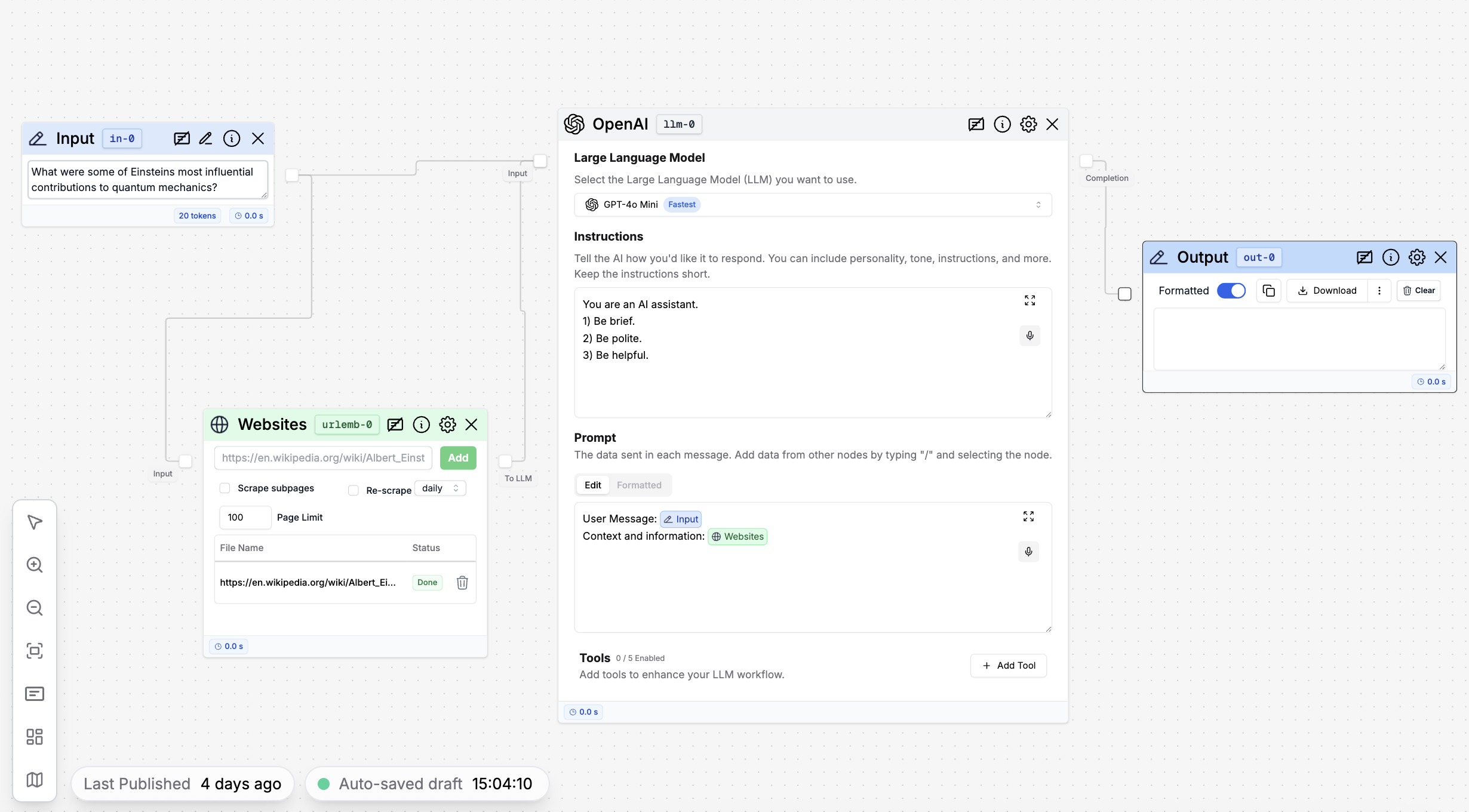
How to connect with other nodes
To utilize the Websites node, you must establish connections to both its input and output edges: Input: This node necessitates a text input. Typically, you would connect the input to an LLM or Input node. Output: This node outputs chunks of information. Typically, you would connect the output to an LLM or Output node.How to use it?Upload URLs via API
There is also the option to add URLs to an URLs+Search node using an endpoint. Below, you will find the steps to do so.flow_id: the id displayed on the url of your flow.node_id: the id of the node where to upload the url (e.g.urlemb-0).org: your organization name.