

How to generate signed URLs
To load documents from S3, you can create a pre-signed URL to access files inside your bucket. Use the following instructions (taken from the AWS documentation).- Sign in to the AWS Management Console and open the Amazon S3 console at https://console.aws.amazon.com/s3/.
- In the Buckets list, choose the name of the bucket that contains the object that you want as a pre-signed URL.
- In the Objects list, select the object for which you want to create a pre-signed URL.
- On the Actions menu, choose Share with a pre-signed URL.
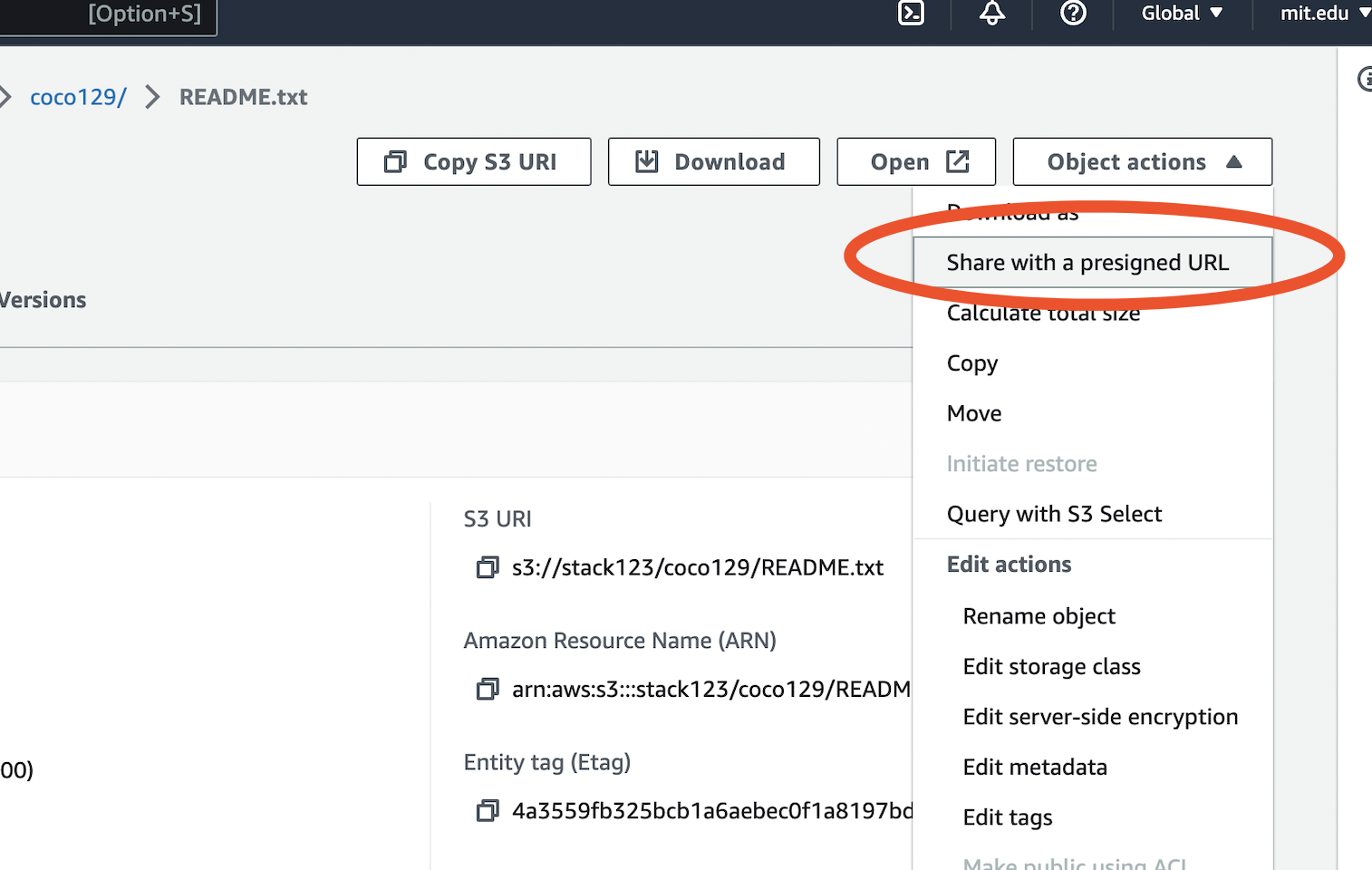
- Specify how long you want the pre-signed URL to be valid.
- Choose ‘Create pre-signed URL’.
- When a confirmation appears, the URL is automatically copied to your clipboard. You will see a button to copy the pre-signed URL if you need to copy it again.
How to add the URL to a Stack AI flow
You can load the document with its signed URL to a URL data loader (see ) which will load and parse the PDF to a vector database. Go to the Deploy section and you can call specify the signed URL in the inputs of the flow. In CuRL a simple flow works as: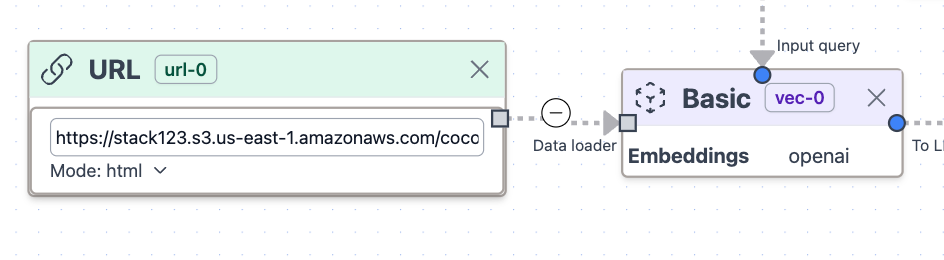 You can try this flow in the WebScrapper Q&A template.